
How to Install TiviMate IPTV Player | Firestick/Android TV

How to Install TiviMate IPTV Player | Firestick/Android TV

The following guide will show you how to install TiviMate on Firestick, Fire TV, and Google/Android TV devices.


This article also provides setup instructions and tips to help you get the most out of TiviMate on your preferred device.

We provide both a screenshot guide and a video tutorial that covers all aspects of this fabulous application. We highly recommend watching the video for additional details.

TiviMate Installation Video


🔹 What is TiviMate IPTV Player?

TiviMate is one of the most trusted and widely used IPTV players in the world, popular among streaming fans for more than a decade.
If you already have an IPTV subscription, you’re missing out if you haven’t tried TiviMate yet!

Unlike free live TV apps, TiviMate doesn’t include channels by default. Instead, it allows you to connect your own IPTV service through an M3U URL or Xtream Code API, giving you access to all your subscribed live channels and VOD content in one place.

Before getting started, make sure your IPTV provider offers M3U or Xtream Code credentials — this is what you’ll need to link your account.

Once connected, TiviMate gives you a clean, organized interface to enjoy your channels with features like:

  • 📺 Category and subcategory sorting

  • 🕒 Electronic Program Guide (EPG)

  • 🔍 Smart search

  • ⭐ Favorite channel lists

  • ⚙️ Multi-device compatibility

Essentially, it works like any modern streaming app — but designed specifically for IPTV users who want a smooth, centralized viewing experience.

👉 Tip: The best way to decide if TiviMate fits your needs is to install it and test it yourself on your preferred device (Firestick, Android TV, or Smart TV).

How to Install TiviMate on Firestick/Android TV

Step 1 – Prepare for Installation

1. From the home screen of your device, locate the search bar and open it.

click the search box

2. Search for the Downloader application.

select downloader

3. Select it.

choose the downloader app

4. Choose “Download” or “Get”.

click get or download

5. Wait a few seconds while the app downloads.

wait for downloader app to install

6. You are notified when the installation has been completed.

downloader ready to launch message

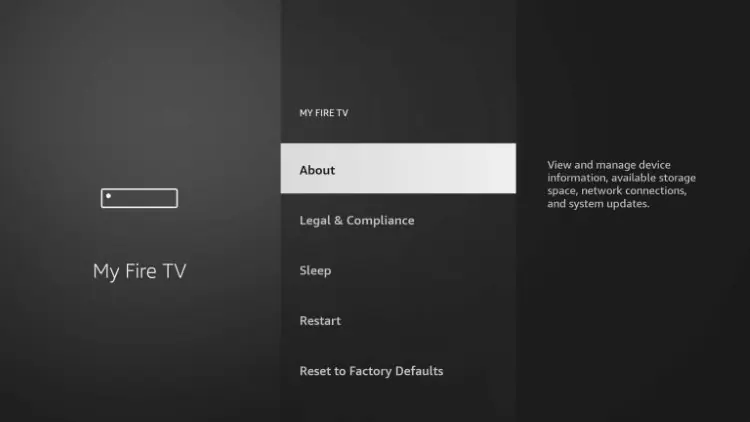
7. Go back to your Settings and click My Fire TV.


return to the settings menu and choose my fire tv

8. Choose About.

click About

9. Hover over Fire TV Stick (or other name) and click the select button 7 times until you see “You are now a developer” message.
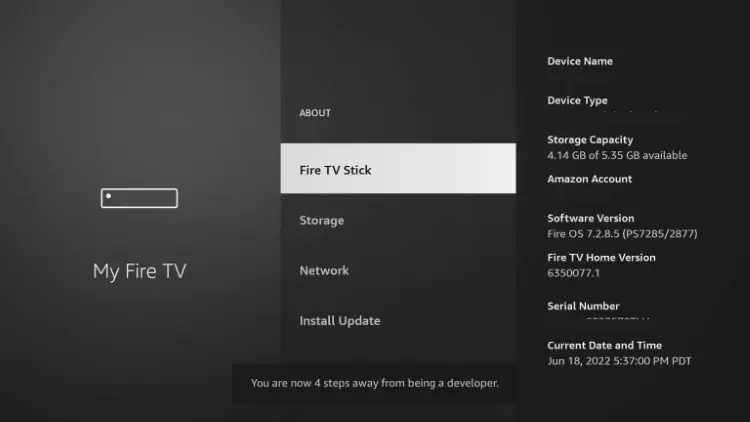
click the name of fire tv device 7 times

10. Return to the My Fire TV tab and Developer options is now listed.

NOTE: If you have an older model of Fire TV Stick, you will see Developer Options within My Fire TV without selecting “About”.

choose developer options

9. Choose Install unknown apps.

click install unknown apps

10. Select Downloader.

click the downloader app

11. Unknown Sources has now been enabled for the Downloader app which we will use to install TiviMate.

unknown sources now on for downloader

We can now continue to the downloading steps.

Step 2 – Install TiviMate IPTV Player

1. Open Downloader and click to select the URL menu bar as highlighted below.

hover over the url bar and click the select button on your remote

3. Input 250931 and click Go.

NOTE: For immediate install, you can insert 272483, which is the official Downloader Code for TiviMate IPTV Player.

enter the DL Code for the TROYPOINT Toolbox

4. Wait for the redirect page to load.

redirect page troypoint toolbox

5. TROYPOINT Toolbox home screen is now presented.

you are then met with the troypoint toolbox home screen

6. Scroll down to find TiviMate and click Download.

click download

7. Wait for the app to download.

wait for install to complete

8. Click Install.

click install

9. The TiviMate “Ready to launch!” message now appears.

ready to launch message appears

10. Click Done.

click done

11. You will now return to the Downloader app where we can remove the installation file. Click Delete.

click delete to remove installation file

12. Click Delete again.

click delete again to confirm

Similar Posts

Leave a Reply

Your email address will not be published. Required fields are marked *